User guide

How to use Spēk

Everything Spēk does, by what you want to do. Each part takes about a minute to read.

Your voice

Spēk speaks your words in another language, in your own voice. To make that voice, you read a short text aloud once. It takes about a minute.

  • Record it: tap Record my voice, agree to the consent, and read the text on screen at your normal pace.
  • For the best result: a quiet room, the phone about a hand's width from your mouth.
  • Not ready to record? Tap I'll do it later and borrow one of three ready-made voices. You can record your own at any time.
  • Hear yourself: right after recording, tap a flag to hear your voice in any of the 22 languages.
  • Record again: open the menu, then Voices → Re-record.

Talk to someone next to you

Use Quick Talk · Anyone with a taxi driver, a waiter, anyone in front of you. They need nothing: no app, no account.

  1. On Home, tap Quick Talk · Anyone and choose the other person's language.
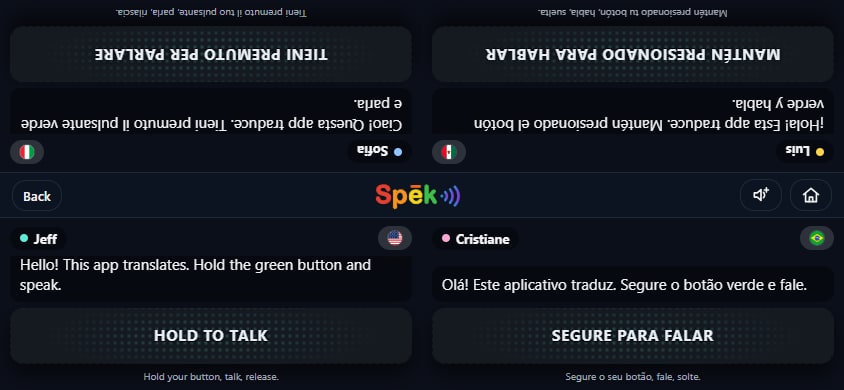
  2. Hold the phone between you. The top half of the screen is turned to face them.
  3. Press and hold Hold to talk, speak, and let go. The phone says it in their language.
  4. They hold the key on their side and answer. You read and hear it in your language.

Other ways to say it

  • Type it instead (the keyboard key): for a quiet train or a loud street. Typing is quicker than speaking.
  • Phrases (the speech-bubble key): ready-made lines such as asking for the bathroom or the bill, plus lines you add yourself. One tap says it. A line you have used before plays even with no signal.
  • Hands-free (the waveform button in the middle bar): nobody holds anything. The phone listens, works out who spoke from the language, and translates each person in turn. Tap the button again to stop.

Small things worth knowing

  • Tap the language at the top of their half to change it.
  • Too quiet? Tap the speaker with a plus sign in the middle bar for a louder voice.
  • The clock button shows everything said so far, to play again.
Quick Talk: one half of the screen faces you, the other half faces the person across from you

A table of up to four

Table Talk puts one phone in the middle of a table. Each person has their own key and their own language. When one person speaks, everyone else hears it in theirs.

  1. On Home, tap Table Talk.
  2. Tap Add person for each seat: a voice already on this phone, a friend, a guest who just picks a language, or someone who records their voice right there.
  3. Tap Start and lay the phone flat. With three or four people, turn it sideways.
  4. Each person holds their own key to speak.

Someone who recorded their voice at your table can keep it. When the table closes, Spēk shows a code for them to scan: Send voice to my phone. Their voice opens on their own phone, and you are already friends.

Table Talk held sideways: four seats, each with a hold-to-talk key in its own language

Talk to someone far away

With Two phones, anywhere, each of you uses your own phone, in your own language. They hear you in your voice, speaking theirs.

  1. Open Friends and tap Invite a friend to send someone a link, or accept a request you received.
  2. Tap Talk next to a friend. They get a notification.
  3. Hold the key, speak, let go. Your message arrives as text and as your voice.

Reading the screen

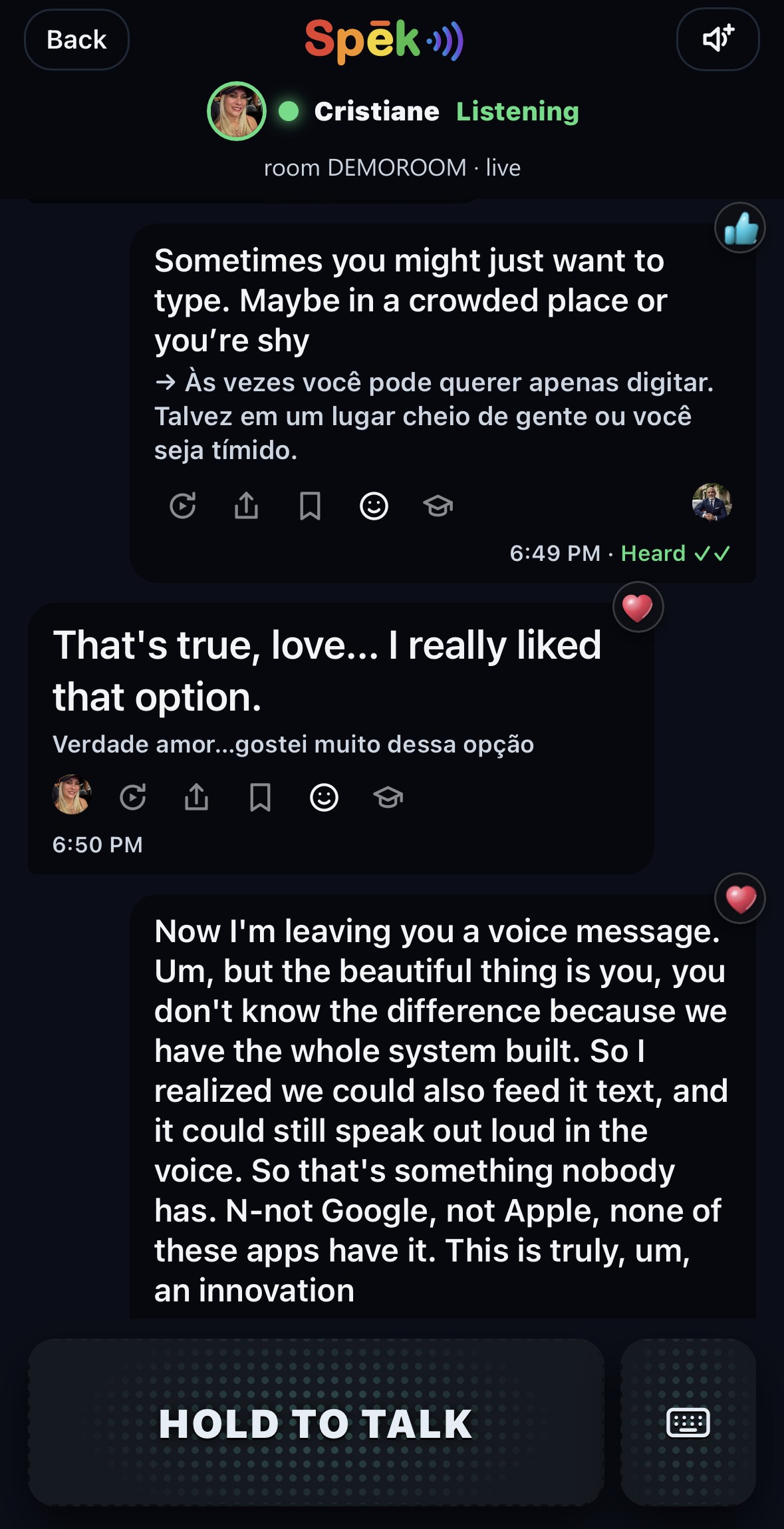
  • The light beside their name: green means they are in the conversation now. Grey means they are away and will see your message later.
  • Under your message: Sent, then Delivered when it reaches their phone, then Heard when they have listened to it.
  • React: double-tap any message.
  • Type it instead: the keyboard key works here too.

To know when a friend writes, open Friends and tap Turn on notifications. On an iPhone, notifications need Spēk on your Home Screen.


A conversation between two phones, each message shown in both languages

Translate a sign or menu

  1. On Home, tap Translate a sign or menu.
  2. Fit the words inside the box and tap the round button.
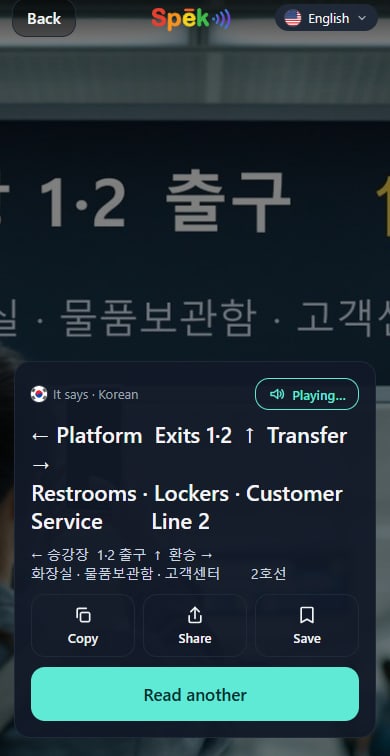
  3. Read the translation. Tap Hear it to have it read aloud.
  • The language at the top right shows the same sign in another language, without a new photo.
  • You can copy, share or save the result. A saved one keeps its photo.
  • The picture button at the bottom right reads a photo you already have.
A sign in Korean, read and translated into English

Save and reuse lines

  • Save a line: tap the bookmark under it. Give it a short name, such as "Bathroom", so you can find it fast.
  • Use it later: open the menu, then Saved. A saved line plays in the voice that said it, even with no signal.
  • Named lines also appear under Phrases in Quick Talk · Anyone, ready to say with one tap.
  • Recent messages: the clock button in a conversation keeps the last messages said on this phone for 30 days.

Learn a line

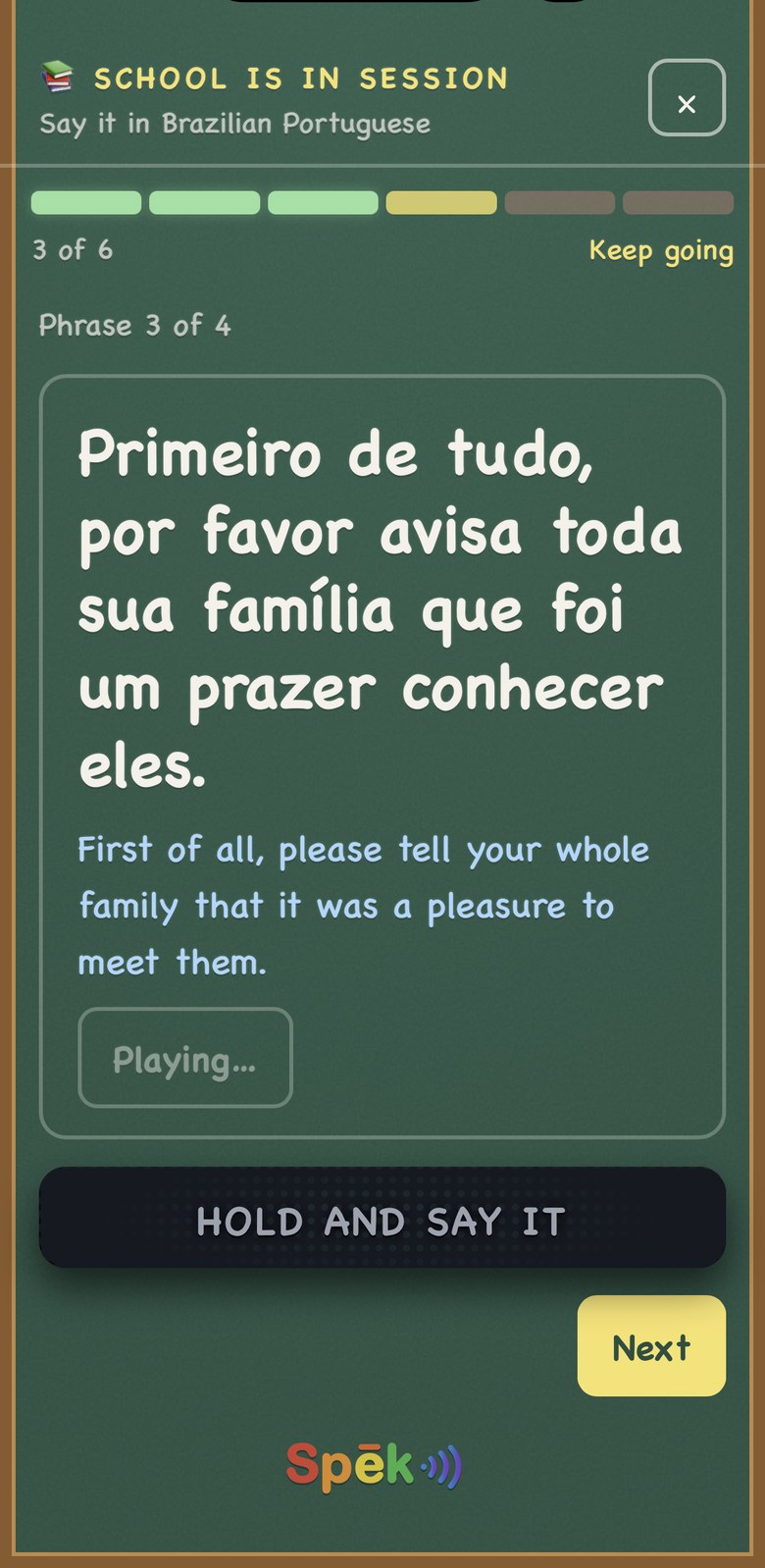
Under a translated line there is a small graduation cap. Tap it and Spēk teaches you to say that line yourself.

  1. Listen to the whole line, spoken in your own voice.
  2. Repeat it one phrase at a time. Spēk tells you which words it heard.
  3. Say the whole line. The cap turns green when you have it.
A lesson on a green chalkboard: one phrase with its meaning and a button to say it

Friends

  • Invite a friend: record a short message, hear it in their language in your voice, and send it with your link. Whoever opens it becomes your friend.
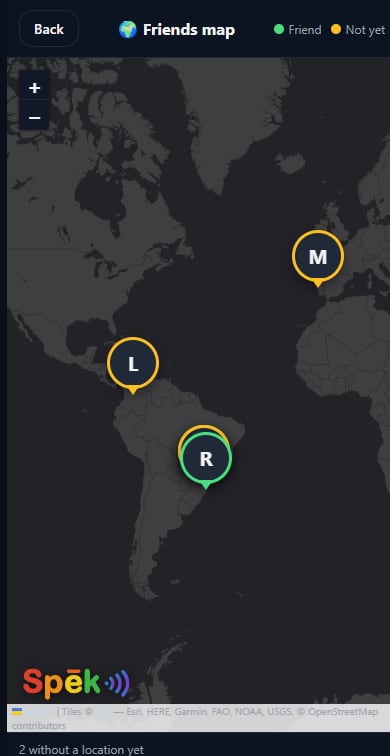
  • Find friends: people around the world who chose to be found. Filter by language or country, or look on the map, then tap Ask to be friends.
  • Practice partners: the people marked "Spēk Team" are there so you always have someone to try a conversation with. They answer right away as an AI partner that says it is one, and someone from the team may join.
  • Discoverable: new accounts can be found by others. To stop appearing in the list and on the map, open Profile and untick it.
  • Block and Report: tap the three dots beside a person. Blocking removes the friendship and the conversation you shared, for both of you.
A world map with people who chose to be found

Your account

  • There is no password. Your account is your voice, your email and your Spēk code. All three are under Profile.
  • A new phone, or a different browser: open Spēk, tap I've used Spēk before and enter your email. We send you a link that signs you in. Your Spēk code works too.
  • Keep Spēk on your Home Screen: it opens full screen and stays signed in. If you opened Spēk from inside Instagram, TikTok or Facebook, open it in your browser first, then add it.
  • Change the app's language: open the menu, then Language.
  • Delete my account: at the bottom of Profile. Your voice, profile, friends and code are removed for good.
  • Remove only your voice: Voices → Forget voice.
The Profile screen: photo, name, city and country

What is free

  • Talking is free every day, and a conversation is never cut off.
  • Your own voice speaks for two minutes of speech a day. After that, the phone's built-in voice takes over until the next day.
  • Typing a message does not use those minutes.
  • The ready-made voices, and translating signs and menus, are free.

When something is wrong

  • The microphone does not work: Spēk asks for it the first time you talk. If you said no, open your phone's settings, find Spēk or your browser, and allow the microphone.
  • Nothing was heard: keep the key held for the whole sentence, and start speaking a moment after you press.
  • No sound: turn the volume up and check the silent switch.
  • The voice is too quiet: tap the speaker with a plus sign in a conversation.
  • My voice does not sound like me: record again in a quiet room, at your normal pace: Voices → Re-record.
  • Spēk forgot me: tap I've used Spēk before and enter your email.
  • Something reads wrong in your language: tell us at hello@spek2me.com. A real person reads every message.

Privacy in short

  • Your voice recording is sent to our voice cloning partner in the USA, to make your voice.
  • You can delete your voice or your whole account at any time, from inside the app.
  • You choose whether other people can find you.

The full Privacy policy says what we collect, why, and for how long, in plain words (in English).